
Skip to content

Blog

Computer displaying deleted files being recovered from a hard drive

Where Do Deleted Files Go?

It may seem like the file is gone for good when you delete it from your computer. However, the truth is more complicated than that. A deleted file doesn’t really disappear from your hard drive; it stays there until new data fills up the space it occupied. This process might be hard to understand for people who don’t know much about how computers handle files. At Lightwire Solutions, we break down complex tech in a way that makes sense. Let’s talk about what happens to deleted files, how recovery works, and why your deleted data might still be hanging around.

What Happens When You Delete A File?

It’s not as easy as it seems to delete a file. When you send a file to the Trash or Recycle Bin, it isn’t erased from your hard drive right away. It’s simply moved to a temporary holding space where it sits until you manually empty the bin. Even after that, the data itself still exists—it’s just marked as available space your system can reuse. In tech terms, deleting a file removes its reference in the file system (basically, the computer’s table of contents). Your operating system forgets the file is there, but the data stays behind. That’s why recovery software often works—unless that space gets overwritten. It’s kind of like pulling the label off a VHS tape. You may not know what movie’s on it, but the film is still there—until you record over it. When you delete a file, you’re removing its label, not the content. The data remains until something else replaces it. Understanding this is key if you’re trying to manage sensitive data. Just dragging a file to the trash isn’t enough. Our team at Lightwire Solutions often helps clients use secure deletion methods to make sure private files stay private.

How Can I Get Back Deleted Files?

To recover deleted files, you need software that can scan your hard drive for data that’s still sitting there, waiting to be overwritten. If it hasn’t been replaced by new data, you may be able to get it back.

How Software for Recovery Works

Recovery software scans for file fragments that are no longer listed in your system’s index. It then tries to reassemble them. The success of this process depends on how soon recovery is attempted and whether anything has been saved over the original data.

What File Recovery Can’t Do

File recovery isn’t a guarantee. If the system has already reused that space, recovery becomes difficult—or impossible. Sometimes files can be partially recovered, but the quality varies.

Why Backups Are Important

Since recovery doesn’t always work, keeping regular backups of important files is essential. With a reliable backup strategy, you don’t have to worry about whether a file is gone for good. Lightwire Solutions offers backup solutions tailored to your business so you never have to guess where your data went. We’ll discuss more about how different devices handle deleted data and the concept of “secure deletion” in the next section.

What Does Happen On Various Devices?

Deleted files are handled differently depending on the device and operating system. For example, Android devices have a “Recently Deleted” folder—similar to the Trash or Recycle Bin on a desktop. iPhones hold deleted photos and videos in the “Recently Deleted” album for 30 days before removing them permanently.

Secure Deletion

Secure deletion goes a step further by overwriting the deleted file’s data, ensuring it can’t be recovered. This is especially important when getting rid of sensitive or personal information. We use these methods when wiping old client devices or retiring outdated tech.

SSDs vs. HDDs

How a deleted file is handled can also depend on your drive. Solid-State Drives (SSDs) often use a feature called TRIM, which helps maintain performance but also makes file recovery much harder. Hard Disk Drives (HDDs), on the other hand, may retain recoverable data longer. Knowing the difference helps you make smart decisions about data protection. Our team can help you determine the best practices for your setup, whether you’re using SSDs, HDDs, or both.

How to Make Sure Files Are Really Deleted

Emptying your trash bin isn’t enough if you truly want to erase sensitive files. To make sure data is permanently gone, you need secure deletion tools that overwrite the file’s data multiple times. This process makes recovery nearly impossible. This step is critical for businesses that handle customer information or sensitive records. At Lightwire Solutions, we use secure deletion tools and best practices to help our clients protect their data and meet compliance standards. Good data hygiene also includes encrypted storage and regular backups—both of which we help manage for many of our clients.

Take Charge of Your Information

To sum up, if you want to keep your digital life safe, it’s important to understand where deleted files go and how recovery works. With the right tools and practices—like secure deletion and routine backups—you can stay in control of your data and avoid accidental loss or leaks.

If you have questions about secure deletion, recovery, or backing up your files, Lightwire Solutions is here to help. Reach out to our team and we’ll help you take charge of your information.

Article used with permission from The Technology Press.

10 Awesome Ways to Customize Your Desktop Layout

You can make your computer experience more unique by changing the style of your desktop. A customized setup lets you organize your space in a way that makes it easier to get to the files and programs you use most. Whether you’re using Windows, macOS, or Linux, there are plenty of ways to personalize your experience. Even small tweaks can improve how your desktop looks and functions—boosting productivity and making your computer feel more like your own. As IT professionals, we’ve helped clients create setups that reflect their work habits and personalities. Here are ten ways you can start customizing your desktop.

10 Ways to Customize Your Desktop

Customizing your desktop can be both fun and rewarding. It offers a wide range of possibilities, from changing backgrounds and themes to organizing icons and widgets. Below are ten ways to make your desktop feel less default and more *you*.

1. Change Your Desktop Background

One of the quickest ways to personalize your desktop is by changing your background image. Choose from family photos, calming landscapes, modern artwork—or even backgrounds that change throughout the day. Looking at something that inspires you can spark creativity or help set the tone for focused work. On Windows, right-click on your desktop and select “Personalize” to change your background. On macOS, go to System Preferences > Desktops & Screensaver. We often help clients choose background options that complement their workspace and mood—little changes like this can go a long way.

2. Use Custom Themes

Themes can change the entire look of your desktop—colors, fonts, window designs, and more. Whether you’re going for sleek and professional or fun and artistic, themes can match your style. Windows users can browse themes in the Microsoft Store or find them online. macOS and Linux users also have access to third-party options, though macOS may require extra tools. We’ve seen firsthand how using the right theme can make digital workspaces feel cleaner, brighter, and more engaging.

3. Organize Icons and Folders

A cluttered desktop can slow you down. Organizing icons and folders into groups—by project, task, or urgency—makes it easier to stay focused and find what you need. Use folders to group related files, and pin frequently used apps to the Dock or Taskbar for quick access. You can even use color coding or labels for extra clarity. Our team often helps clients create systems that reduce digital clutter, which leads to better workflows and less frustration.

4. Add Widgets and Gadgets

Widgets give you at-a-glance access to things like weather updates, calendars, or system performance metrics. You can place them anywhere on the screen to suit your workflow. Tools like Rainmeter (Windows), GeekTool (macOS), and Conky (Linux) make it easy to add personalized, functional widgets. If you’re not sure where to begin, we can help you set up the right mix of tools that support how you work.

5. Create Custom Icons

Tired of the same folder icons? Custom icons let you give your desktop a fresh, consistent look. You can design your own or download sets that match your aesthetic. To change them, just right-click on a file or folder, select “Properties” (Windows) or “Get Info” (macOS), and swap out the icon. We’ve helped businesses implement branded icon sets to give their desktops a cohesive, professional look across the whole team.

6. Set Up Multiple Desktops

Using multiple desktops or workspaces helps you keep different tasks or roles separated. It’s like having different rooms for different projects—less clutter, more focus. Windows offers Task View, macOS has Spaces, and most Linux environments have robust desktop management features built in. We often recommend this to clients who juggle several responsibilities—once it’s set up, switching between tasks becomes much more seamless.

7. Use Keyboard Shortcuts

Custom shortcuts can help you move faster. You can create your own or use built-in ones to open apps, move windows, or switch desktops. On Windows, visit Settings > Ease of Access > Keyboard. On macOS, go to System Preferences > Keyboard. Shortcuts are a small upgrade with big impact—and if you need help setting them up, just ask our team.

8. Automate Tasks

If you’re doing the same thing repeatedly—like renaming files or launching a series of programs—automation can save you tons of time. AutoHotkey (Windows) and Automator (macOS) are two great tools for creating scripts to handle these tasks for you. We’ve built custom automations for clients to streamline everything from onboarding processes to daily routines.

9. Customize the Taskbar or Dock

Your Dock or Taskbar is prime real estate—use it wisely. Rearrange icons, add custom tools, or even change its size and location to suit your needs. These tweaks don’t take long, but they can make your workspace feel a lot more efficient and user-friendly. We’ve walked clients through dozens of setups and can tailor yours too.

10. Use Third-Party Software

There’s a huge world of third-party tools that can make your desktop truly one of a kind. From animated wallpapers to live data dashboards, the sky’s the limit. Rainmeter and GeekTool are popular choices, and there are many others depending on your OS. We love helping clients find the right tools for their style and goals—and we’re happy to help you do the same.

Try Customizing Your Desktop

Updating your desktop layout is more than just a cosmetic upgrade—it’s a way to work smarter, express your personality, and create a digital space that supports your goals. Whether you’re looking to boost productivity or just want a setup that makes you smile, there’s no shortage of customization options.

Need a hand putting any of this into action? That’s what we’re here for. Our team can walk you through setup, recommend the best tools, and even help deploy desktop customizations across your business.

Article used with permission from The Technology Press.
Cloud Storage Providers

6 Best Cloud Storage Providers to Save Device Space

In this digital world, it’s hard to keep track of all the storage space on your devices. It’s easy for our devices to run out of room because we keep adding more photos, videos, documents, and files. Cloud storage is a convenient option because it lets people store their data online, which frees up space on their devices and lets them view files from anywhere. This post will talk about the best cloud storage services that can help you get more done online and save space on your devices—with insights and guidance from Lightwire Solutions, your trusted IT partner.

What Are Cloud Storage Providers?

Cloud storage services let people store and control their data online. These are called cloud storage providers. There are many perks to using these services, such as more storage space, the ability to share files, and better security. At Lightwire Solutions, we help our clients make the most of cloud storage solutions that match their workflow, needs, and budget. People who use cloud storage can get to their files from any internet-connected device. This makes it easier for people to work together and from home. Cloud storage is important for people who want to free up room on their devices and keep their data safe and easy to access. There are different cloud storage companies with different features, prices, and ways to use their services. Some providers focus on personal use and offer free storage with the choice to pay more for more space. Others are geared toward businesses and offer advanced tools for working together and lots of storage space. It’s important to know the differences between these service providers so you can pick the right one for your needs. That’s where Lightwire Solutions comes in. We take the guesswork out of choosing by helping our clients evaluate their options and find the best fit for their team or household. Recently, cloud storage has grown into more than just a place to store files. It’s now also a way to work together and get things done. A lot of service providers now offer office software and real-time tools for working together. This makes it easier for teams to work on projects and papers together. The move toward a more unified service model has made cloud storage an important tool for both personal and business use. Next, we’ll cover how cloud storage providers can help with productivity.

How Do Cloud Storage Providers Help With Productivity?

Cloud storage providers play a crucial role in enhancing digital workflow by offering a centralized platform for storing, accessing, and sharing files. This not only helps in freeing up device space but also facilitates collaboration and productivity. Here are some key ways cloud storage enhances digital workflow:

Centralized File Management

Cloud storage allows users to manage all their files from a single platform. This means you can access your documents, photos, and videos from any device with an internet connection, making it easier to work on projects or share files with others. Lightwire Solutions works with clients to ensure their storage solutions are set up for maximum efficiency—whether that’s through shared folders, synced apps, or remote access tools.

Enhanced Collaboration Tools

Many cloud storage providers offer integrated collaboration tools that enable real-time editing and commenting on documents. This feature is particularly useful for teams working on projects together, as it allows multiple users to contribute simultaneously without version control issues. Our team at Lightwire Solutions can implement and train your staff on the collaboration tools that will best suit your workflow, ensuring smooth communication and shared progress.

Advanced Security Features

Cloud storage providers typically offer robust security features, including encryption and two-factor authentication, to protect your data from unauthorized access. This ensures that your files are safe even if your device is compromised. At Lightwire Solutions, security is always a priority. We help clients understand and apply the best security settings to safeguard sensitive data, especially in industries where compliance is key.

Scalable Storage Options

Cloud storage services often provide scalable storage options, allowing you to upgrade or downgrade your storage capacity as needed. This flexibility is beneficial for both individuals and businesses, as it ensures you only pay for the storage you use. Whether you’re a solo entrepreneur or a growing company, Lightwire Solutions can guide you through scalable options and prevent you from overpaying for unused storage—or hitting a wall when your needs grow. The ability of cloud storage providers to enhance digital workflow makes them indispensable for anyone looking to streamline their file management and collaboration processes. In the next section, we’ll talk about the best cloud storage providers out there now.

What Are the Best Cloud Storage Providers?

Choosing the right cloud storage provider depends on your specific needs, whether you’re looking for personal use or business solutions. Here are some of the top cloud storage providers that offer a range of features and benefits: Google Drive: Known for its seamless integration with Google Docs and Sheets, Google Drive offers 15 GB of free storage and is ideal for those already using Google’s productivity suite. Microsoft OneDrive: Integrated with Microsoft Office, OneDrive provides a smooth experience for users of Word, Excel, and PowerPoint. It offers 5 GB of free storage and is particularly useful for Windows users. Dropbox: Famous for its file-sharing capabilities, Dropbox offers 2 GB of free storage and is popular among users who frequently collaborate on projects. iCloud: Designed for Apple users, iCloud provides 5 GB of free storage and integrates well with other Apple services like Photos and Mail. pCloud: Known for its lifetime subscription options, pCloud offers up to 10 GB of free storage and is a good choice for those looking for long-term storage solutions. Box: Focused on business users, Box offers robust security features and collaboration tools, making it ideal for enterprises. Lightwire Solutions works with all of these major platforms and more, helping our clients evaluate which service aligns with their technical ecosystem, collaboration needs, and security preferences. It’s important to compare these providers based on your individual needs because each one has its own pros and cons. There is a cloud storage service out there that can meet your needs, whether you want free space, tools for working together, or more security. Let Lightwire Solutions help you make the best choice.

Take Control of Your Digital Space

Cloud storage providers are a great way to manage the room on your devices and get more done online. You can make sure that your files are safe, easy to view, and share with others by picking the right provider. There’s a cloud storage service out there for everyone, from individuals who want to free up room on their phones to businesses that need powerful tools for teamwork. Lightwire Solutions is here to walk you through every step—from selecting the right provider to setup, integration, and training.

To get personalized help choosing the best cloud storage provider for your needs, please don’t hesitate to get in touch with us.

Article used with permission from The Technology Press.

Hacker

Malware vs. Ransomware: What’s the Difference?

Malware and ransomware are two types of bad software. They can damage your computer or steal your data. Downloading this harmful software comes with serious consequences. In 2024, there were more than 60 million new strains of malware found on the internet. This is why it’s critical to understand the difference between them. This article will help you understand both types of threats.

What is Malware?

Malware is a general term that means “malicious software.” It includes many types of harmful programs. Depending on the type, malware can do different bad things to your computer. These are the four main types of malware:

  • Viruses: These spread from one computer to another.
  • Worms: They can copy themselves without your help.
  • Trojans: They trick you into thinking they’re good programs.
  • Spyware: This type watches what you do on your computer.

Malware can cause a lot of problems. If you get malware on your device, it can:

  • Slow down your computer
  • Delete your files
  • Steal your personal info
  • Use your computer to attack others.

At Lightwire Solutions, we offer managed security services that can help protect your devices from malware and reduce the risk of infection.

What is Ransomware?

Ransomware is a type of malware. It locks your files or your entire computer. Then it demands money to unlock them. It is a form of digital kidnapping of your data. Ransomware goes by a pretty basic pattern:

  1. It infects your computer, normally through an e-mail or download.
  2. It encrypts your files. This means it locks them with a secret code.
  3. It displays a message. The message requests money to decrypt your files.
  4. You may be provided with a key to unlock the files if you pay. In other cases, the attackers abscond with your money.

As of 2024, the average ransom was $2.73 million. This is almost a $1 million increase from the previous year according to Sophos. There are primarily two types of ransomware:

  • Locker ransomware: This locks the whole computer.
  • Crypto ransomware: This only encrypts your files. If you want to safeguard your organization against ransomware attacks.

Lightwire Solutions offers advanced cybersecurity services that include ransomware-specific protection tools. We can help you mitigate risk before it becomes a problem.

How are Malware and Ransomware Different?

The main difference between malware and ransomware is their goal. Malware wants to cause damage or steal info. Ransomware wants to get money from you directly. While malware wants to take your data, ransomware will lock your files and demand payment to unlock them. Their methods are also different. Malware works in secret and you may not know it’s there. Ransomware makes its presence known so the attackers can ask you for money. Lightwire Solutions specializes in comprehensive malware and ransomware protection for businesses and individuals alike. Our solutions can keep your data secure and ensure your devices are safeguarded from the latest threats.

How Does It Get Onto Your Computer?

Malware and ransomware can end up on your computer in many of the same ways. These include:

  • Through email attachments
  • Via phony websites
  • Via a USB drive with an infection
  • From using outdated software

These are the most common methods, but new techniques are on the rise. Fileless malware was expected to grow 65% in 2024, and AI-assisted malware may make up 20% of strains in 2025. If you get infected by malware or ransomware, it’s important to act quickly.

You should know these signs of infection to protect yourself.

For malware:

  • Your computer is slow
  • Strange pop-ups appear
  • Programs crash often

For ransomware:

  • You can’t open your files •
  • You see a ransom note on your screen
  • Your desktop background changes to a warning

At Lightwire Solutions, we provide cybersecurity awareness training and advanced security monitoring to help prevent these types of infections.

How Can You Protect Yourself?

You can take steps to stay safe from both malware and ransomware. First, here are some general safety tips for malware and ransomware:

  • Keep your software up to date
  • Use strong passwords
  • Don’t click on strange links or attachments
  • Backup your files regularly

For malware specifically, you can protect yourself by using anti-virus programs and being selective with what you download. To stay safe from ransomware, take offline backups of your files and use ransomware-specific protection tools. Lightwire Solutions offers ongoing IT support and security services, including software updates, endpoint protection, and backup solutions, to ensure that your devices are secure against malware and ransomware.

What to Do If You’re Attacked

If you suspect that you have malware or ransomware, take action right away.

For Malware:

  1. Go offline
  2. Run full anti-virus
  3. Delete infected files
  4. Change all your passwords

For Ransomware:

  1. Go offline Don’t pay the ransom (it may not work)
  2. Report the attack to the police
  3. Restore your files from a backup

Our team at Lightwire Solutions can guide you through these steps if you’re ever infected and offer professional assistance to minimize the damage and restore your files quickly.

Why It Pays to Know the Difference

Knowing the difference between malware and ransomware can help with better protection. This will help you respond in the best way when attacked. The more you know what you are against, the better your chance at taking the right steps to keep yourself safe. If you are under attack, knowing what type of threat it is helps you take quicker action. You can take proper steps towards rectifying the problem and keeping your data safe. Lightwire Solutions can be your trusted partner in cybersecurity, providing the expertise and tools necessary to protect your data, minimize the risk of malware and ransomware, and ensure business continuity.

Stay Safe in the Digital World

The digital world can be hazardous. But you can keep safe if you’re careful. Keep in mind the differences between malware and ransomware, and practice good safety habits daily. And, if you are in need of help to keep yourself safe on the internet, never hesitate to ask for assistance. For further information on protecting your digital life, contact us at Lightwire Solutions. We want to help keep you secure in the face of all types of cyber threats.

Article used with permission from The Technology Press.

Man using laptop

How Much Device Storage Do You Really Need? A Practical Guide from Lightwire Solutions

Device storage decides how many applications, photos, and files you can retain on your device. When you run out of storage, it can affect your productivity and device performance. But finding the right storage amount isn’t always easy. We can underestimate what we need or get too much storage. This guide will help you figure out how much storage is actually needed.

What is device storage?

Device storage refers to space on the phone, tablet, or computer. The device storage stores all your data such as apps, photos, videos, and documents. When you fill up your storage space, you can no longer save videos and documents. In that case, you would need to pay for additional storage or get a new device. There are two major types of storage:

  • Internal Storage: This is a built-in device. It can’t be removed, and is usually faster compared to external storage.
  • External Storage: This includes SD cards and USB drives, which can be added or removed. They give you more space but may be slower.

Different devices come with various storage options. Let’s look at some common ones:

  • Smartphones: Most smartphones start at 64GB. High-end models can have up to 1TB. iPhones don’t have SD card slots. Many Android phones do.
  • Tablets: Tablets typically range from 32GB to 256GB. Some have slots for memory cards if you need more space.
  • Laptops: Laptops tend to contain 128GB to 1TB of storage. You can generally upgrade that later.
  • Desktops: Desktop computers can have really large storage. 1TB to 4TB is common. You can easily add more if needed.

How Much Storage Do You Really Need?

It can be difficult to know how much storage you really need. Many people get too much or too little storage. Your storage needs depend on how you use your device. Let’s look at some common user types:

Basic Users

If you mostly browse the web and use simple apps, 64GB might do the job. This is enough for:

  • Email
  • Social media
  • Light photo taking

Average Users

For people who take lots of photos and use many apps, 128GB to 256GB works best. This covers:

  • Many apps
  • Photo libraries
  • Some video storage

Power Users

For users involved in:

  • Video editing
  • Large game libraries
  • Huge photo collections

Professional Users

Some jobs need even more space. 1TB or more is common for:

  • 4K video production
  • Large datasets
  • Professional photo editing

How Can You Manage Device Storage Better?

You can optimize your storage to avoid running out of space. Here are some tips:

  • Use cloud storage: Services like Google Drive or iCloud can store your files online and save device space. 65.2% of people use cloud storage as their primary storage. At Lightwire Solutions, we offer secure cloud storage options that can help keep your data safe and easily accessible.
  • Delete unused apps: Remove apps you don’t use. They take up space and might slow down your device.
  • Clear cache regularly: Many apps store temporary files. Clearing these can free up space.
  • Use streaming services: Stream music and videos rather than download them. That saves a lot of space.

What Takes Up The Most Storage?

Some things use more storage than others. Here are the biggest storage users:

  • Videos: Videos are space-hungry. A 1-hour 4K video can take up 7GB or more.
  • Photos: Photos take less space compared to videos. However, they accumulate fast. 1000 high-quality photos may take up 5GB.
  • Games: Modern games are huge. Some can be over 100GB each.
  • Apps: Most apps are small. But some, like editing tools, can be very large.

What to Do If You Run Out of Storage?

If you run out of space, you can add more storage by using SD cards or an external drive. This is a great option instead of buying a new device. If possible, change your device for one with higher storage. An upgrade will give you more space internally. If you’re running out of space frequently, Lightwire Solutions can assist you in evaluating your device needs and help you find the right upgrade options to fit your workflow and storage requirements. You can also put more files in the cloud with cloud storage solutions. Some popular options are Google Drive and Dropbox. This frees up more space on your device.

How to Choose the Right Storage for Your Next Device

When buying a new device, keep in mind how many photos and videos you take, how many apps or games you download, and whether you work with big files. Choose a device that will have enough storage for your needs. It’s better to have too much than too little. Lightwire Solutions is here to help you make the best choice for your next device. Whether you need assistance with storage solutions or are ready to upgrade to a higher-capacity device, our team offers expert guidance to match your personal or professional needs. Now you are aware of much more about device storage. You can make a better choice for your next device. Your needs may change over time, so it’s usually wise to get more storage than you think you need. Do you still have questions about device storage? Contact Lightwire Solutions for personalized advice. We are here to help you find the right device with just the right amount of storage.

Article used with permission from The Technology Press.

Laptop device

7 Signs It’s Time to Upgrade Your Device

Technology is fast, and in no time, our gadgets get outdated. According to data from Statista, consumers replace their devices about every 2-3 years. Still, it can be tricky to determine when an upgrade is needed. Upgrading your device isn’t just about having the latest gadget. An up-to-date device is safer and more efficient. This article will help you in spotting the signs that your gadget needs replacement. We will talk about seven signs that it is time to get a new one.

7 Signs It’s Time for a Device Upgrade

It can be hard to tell when you need a new device, especially if you feel the current one is working fine. There are a few ways to tell your device is outdated, from slow loading times to lack of storage. Here are 7 signs it’s time for a device upgrade:

1. Is Your Device Slow and Laggy?

Slow performance is a major indicator. If your device takes an eternity to boot up, that might be a sign to get an upgrade. Apps that take too long to open can be really frustrating. Slow internet access could mean your gadget is getting older. Most of us use our phones, computers, and tablets for day-to-day activities. A slow device makes texting, sending emails, managing calendars, and doing work more difficult. If you can save time in your day with work and personal tasks, the cost of an upgrade may be worth it. If you’re experiencing slow performance and productivity is taking a hit, Lightwire Solutions can help you identify your needs and assist in selecting the right replacement. We also offer managed IT services to optimize the performance of your existing devices before making that big upgrade decision.

2. Frequent Freezing and Crashing

Does your device freeze often? Crashes are another bad sign. If you see the spinning wheel a lot, your device might be struggling. These issues mean your device can’t keep up with today’s demands. Freezing and crashing can impact your productivity. Imagine working on a document on your computer and losing everything when it crashes, or taking 20 minutes to type a simple email. This is why it’s important to have an up-to-date device. Lightwire Solutions offers expert support and troubleshooting for devices that crash or freeze regularly. We can help you extend the life of your device with repairs or upgrades, ensuring smoother operation.

3. How’s Your Battery Life?

Battery problems are a clear upgrade sign. If your device dies quickly, it’s a red flag. Needing to charge multiple times a day is not normal. A healthy device should last most of the day on one charge. Check to see if your battery is swollen. This is a safety hazard and should be dealt with immediately. If your device often overheats, the battery may be malfunctioning. These are some pretty serious issues that, in most cases, mean it’s time for a new device. Before you purchase a new device, consider talking to Lightwire Solutions for guidance on battery replacements or advice on whether your device is worth keeping. Our team provides recommendations on the most efficient devices for your needs.

4. Is Your Storage Always Full?

Running out of space all the time? That’s a good indication that an upgrade is due. It is frustrating when you can’t install new apps. Constantly deleting photos and files is a pain. More storage is one great reason to upgrade. If you’re always running out of space and need more storage, Lightwire Solutions can help by recommending devices with ample storage or cloud solutions to meet your needs.

5. Are You Missing Out on New Features?

New devices boast cool new features. If your device can’t get the latest updates, you’re missing out. Newer models often boast better cameras and screens. They also have faster processors and more memory. Age plays a huge factor in device performance. Most smartphones last around 2-3 years, and laptops, perhaps 3-5 years. If your device is older than this, then it might be time for an upgrade. Older devices struggle with new software and apps. At Lightwire Solutions, we stay on top of the latest tech and can guide you through the decision-making process to upgrade your device. Let us help you choose one that fits both your budget and your tech needs.

6. Are Repairs Costing Too Much?

Repairing old devices can be costly. If the repair costs are high, upgrading may be wiser. Sometimes, the repair costs are almost equal to a new device. In such cases, it is often better to buy a new one. Since older devices usually go for less on the market, repair costs can add up quickly. For example, if you break the screen on your iPhone X, it can cost more than $300 to repair it. An iPhone X can be purchased for around $175. These repair costs are more than the value of the actual device. If you’ve had it for a while, you may have paid closer to $1,000 at the time of release. When you combine what you spent on your current device with any repair costs, you’ll notice it’s much better to upgrade. Lightwire Solutions can help you analyze repair costs vs. upgrade costs, providing you with recommendations for both options. We can help keep your devices running efficiently, whether through repairs or guiding you to the best replacements.

7. Does Your Device Support the Latest Software?

Older devices often can’t run new software. This may be a security risk and also means you miss new features. Consider upgrading if your device can’t update to the latest OS. Old software has security holes in it. Your data can easily be compromised by this kind of threat. Most hackers usually attack those gadgets operating on older, obsolete systems. This is why it’s important to keep your devices updated. If you keep an old device around, your data becomes vulnerable. You won’t be protected by the latest security patches. A new device running on the latest update is the safest option. Lightwire Solutions offers managed IT security services to protect your devices and data. We can also provide you with recommendations for the most secure devices to meet your needs.

Ready for a Fresh Start?

If you have been noticing these signs, then that is probably the time for an upgrade. The new device will make your digital life easier, more fun, and a bit safer. Think about your needs and budget in choosing a new device. Don’t wrestle with an older, slower device; upgrade to one that will serve you much better. Your increased security and productivity will thank you in the future. If you need help choosing a new device, contact Lightwire Solutions today. Our team is ready to help you find the perfect fit for your needs and budget.

Article used with permission from The Technology Press.
Used laptop

8 Considerations Before Buying Used Technology

We use our devices every day, so they need to work well for our needs. A device that’s slow or broken is inconvenient and can affect productivity for day-to-day tasks. But buying a brand new phone or laptop isn’t always the best option. We’ll cover eight things you should consider before making the purchase of a used device.

Tech that’s used can be a way to save cash. According to recent data, 70% of consumers bought or sold used technology in 2023. It’s a popular market that’s expected to grow to $2.7 trillion in 2025. However, you still have to exercise caution when buying any used device. Before purchasing used electronics, consider these seven things:

1. Is the Device Still Supported?

Before actually buying used tech, check to see if it still gets updated. Older devices may not receive new software, which could make them less safe to use. Security updates protect your gadget against cyber attackers. When a device is no longer supported, it can’t get security patches in the latest updates. This leaves an opening for hackers to get in. To protect your information, you should always be able to update the device you’re using. If a device doesn’t get these updates, then it’s not something worth buying. Check the manufacturer’s website and see how long they support the device. This will let you know how long you can use it safely. Other brands could support their products longer than others do. At Lightwire Solutions, we can help you assess whether a used device is suitable for your business and ensure it’s compatible with your network and security needs.

2. Device Age

The age of the device is very important. New devices generally work better and have long-lasting quality. If your device is a few years old, you may notice some performance issues. Check when your device originally hit the market. This will tell you how old it is. You can look into newer models of devices and see their capabilities, too. Decide if the device will still provide whatever you require in the way of functionality. At Lightwire Solutions, we can provide expert advice on whether an older device is worth keeping or if you should upgrade to avoid potential security risks.

3. Battery Health

Try to get a rough idea about the battery health. Certain vendors may provide that information for you. A healthy battery will allow you to use your device for long periods without having to charge it. If your battery health is low, it may be time for an upgrade. Check out how much the replacement of the battery will be. Then, add it to the system cost. Need help evaluating the overall health of your device? Contact Lightwire Solutions for a device check-up and to ensure your devices are running efficiently.

4. Any Apparent Damage?

Visible damage on the device could mean bad performance. Cracks and dents might indicate falls or rough handling. They could also signal severe internal problems within the gadget. Water damage can also cause a number of problems. Look for discoloration or rust. If there’s noticeable damage to the device, it may not be worth it. Major defects can impact how the device works when you use it daily. If you’re unsure whether a device’s damage will affect its performance, let Lightwire Solutions conduct a diagnostic test to ensure your tech is in good working condition.

5. Are All Accessories Available?

Ensure that you get everything that you might need with the gadget. Missing items could mean additional purchases later. Chargers and cables are important. Ensure that they are present with your purchase. Extra things such as cases and headphones are always nice to have. Check whether they are included. If you have to purchase these items separately, it will add to the overall cost. Lightwire Solutions can provide recommendations on the right accessories to complement your devices and ensure everything is set up properly.

6. What’s the Return Policy?

It is always important to know the details of the return policy. This way, you can take it back if something goes wrong. If anything happens to the device, a warranty can help with repair or replacement. Check these details before purchasing to be safe. At Lightwire Solutions, we offer ongoing support to help you manage your devices and ensure they stay in good condition, even after you’ve made your purchase.

7. What is the Cost?

Compare it with new and other used alternatives to make sure you’re getting the best deal. Sometimes buying a brand new device doesn’t cost much more. You may consider buying one as new instead if it’s not too far off. Research several sellers to make sure you’re not overpaying. Lightwire Solutions can help you weigh the costs of upgrading your devices and ensure you’re getting the best value for your investment. We can also help with ongoing management and maintenance of your devices.

8. Is It Possible to Try Before You Buy?

It’s always a good idea to try a device before you buy. This is especially true when buying on a peer marketplace. If at all possible, meet the seller and try out the device in person. It’s the best way to test before making a commitment. Not able to meet in person? Ask for a video. The seller can make a video demonstrating the device. This way, you can make sure you’re not wasting your time meeting them. To be safe, you can purchase a used device from a major retailer and test the device in the store. At Lightwire Solutions, we provide consultation services to help you make the right decision when purchasing or upgrading technology for your business.

Buying Used Tech

Buying used technology can be a little tricky, but if you think about these things, you’re likely to make a good choice. Remember to check key things like battery health, device support, and prices before you buy. While used tech can be cheaper than new, it’s not always a better deal. Make sure the device you choose will work well for your needs. It should also be secure to use and be functional for a long time. If you can find a used device that’s not too old at a comparable price to new ones, you may have a great deal on your hands. If you’re unsure or need assistance with evaluating your devices, contact Lightwire Solutions today for expert advice and support. We’ll help you find the right technology for your business needs, whether it’s new or used.

Article used with permission from The Technology Press.

Cyber Trust Mark

What Is the Cyber Trust Mark and Why Does It Matter for Smart Devices?

The Cyber Trust Mark is a new smart device label created by the US government to prove that a device is safe. Internet of Things (IoT) devices have risen in popularity recently. Devices like smart thermostats and baby monitors make our lives easier, but also open us up to cyber threats. There were over 112 million IoT cyber attacks worldwide in 2022, and this number continues to grow. With an increase in AI-powered attacks, an 82% increase was expected in 2024. The United States created new standards to confirm a device is safe. As a result, you may see a shield with the “U.S. Cyber Trust Mark” when device shopping. Let’s take a look at what this means and how you can use this new feature next time you make a purchase.

What is the Cyber Trust Mark?

Smart devices are everywhere nowadays, from our homes to offices. Yet, some such devices are still insecure, leaving openings for hackers to steal our info and spy on us. In 2023, TVs, smart plugs, and digital video recorders had the most IoT vulnerabilities and attacks. Many more types of devices may be dangerous without our knowledge. This problem is now being solved through the Cyber Trust Mark. It will tell you which device is safe without a doubt. Even if you’re not tech-savvy, you can purchase with confidence. At Lightwire Solutions, we help businesses navigate security risks and ensure that the technology you rely on remains safe and secure.

How Does a Device Get the Cyber Trust Mark?

To get the U.S. Cyber Trust Mark, a device has to undergo tests to verify its security. These tests cover several points and examine things like: • Password strength • Data protection • Software updates First, the device should have strong passwords. Weak passwords are easily guessed by hackers. This is one of the most common ways cybercriminals hack into devices. Next, the device should keep your information safe. It should use appropriate methods to lock up your data for privacy and security. The device should also be regularly updated. These updates fix problems and keep the device safe from hackers. Devices with frequent updates are more secure than others. At Lightwire Solutions, we understand the importance of device security and can help implement strategies to keep your business technology up to date and secure.

How Often Are the Standards That Define the Cyber Trust Mark Updated?

Companies have to apply to get the mark. They send their devices for testing, and if it passes, it gets the mark. The company can then put the mark on the box of the device. This requires time and costs, but it’s worth it for businesses. It can help them sell more devices with an increase in consumer trust. Lightwire Solutions works with businesses to ensure that their technology infrastructure is both secure and compliant with the latest industry standards, so your company stays protected.

When Will We See the Cyber Trust Mark?

It is new, but the mark will start showing up on devices soon. They want stores to start using it immediately, meaning the next time we go shopping, we may see it. Many types of smart devices may obtain the Cyber Trust Mark, including but not limited to the following: • Smart TVs • Smart speakers • Security cameras • Smart thermostats • Smart locks As a business, it’s essential to consider security from the start. Lightwire Solutions offers comprehensive IT security solutions, ensuring your devices and systems are protected from emerging threats, even before new marks like the Cyber Trust Mark are introduced.

How Does The Mark Help Consumers?

The Cyber Trust Mark makes shopping simpler. It doesn’t require any technical knowledge. All you have to do is look for the mark to confirm which device is safe. The mark also encourages companies to make safer devices. They want the mark, so they work harder at security. When it comes to securing your office or home devices, Lightwire Solutions is here to help you ensure all your tech is protected and compliant.

What If a Device Doesn’t Have the Mark?

If a device doesn’t have the mark, that doesn’t mean it’s not safe. In this case, you should look into its safety features. You may also ask the store or check online for more information. Wherever possible, it’s best to choose devices that carry the mark. This way, you can be sure they have passed important safety tests. If you’re uncertain about the safety of any device, Lightwire Solutions can assist in evaluating its security and offering solutions to protect your business from vulnerabilities.

What to Do If You Already Have Smart Devices?

If you already have smart devices, don’t worry. You can still take steps to make them safer, even without the trust mark. Here are some tips: • Change default passwords • Keep the software updated • Turn off features you don’t use • Use a strong Wi-Fi password Follow these steps to help protect your devices and your info. Lightwire Solutions can help you implement a comprehensive security strategy, making sure your devices are optimized and protected from cyber threats.

What’s Next for Smart Device Safety?

The Cyber Trust Mark is a big step for device safety, but it’s just the beginning. We’ll see more changes in the future. These may include: • Stricter standards for the mark • More types of devices getting the mark • Better ways to test device safety The goal is to make all our smart devices safer to protect our info and our privacy. For now, the mark will only apply within the U.S., but other countries may create something similar in the future. At Lightwire Solutions, we’re always on top of evolving security trends, ensuring your systems remain secure as new standards emerge.

Stay Safe and Smart

The Cyber Trust Mark helps us in making informed choices; it’s an easy way to know what devices are safe. When you shop, look for the mark. It’s your sign of a trustworthy device. For businesses looking to secure their tech, Lightwire Solutions offers tailored IT services to keep your infrastructure protected from cyber threats. Whether it’s smart devices or overall network security, we’re here to help. Contact Lightwire Solutions today to get started on a safer, more secure future for your business.

Article used with permission from The Technology Press.

Man using laptop

How to Secure Your File Storage and Transfers

File storage and transferring play a huge role in most people’s lives. But keeping your files safe is no easy task. In this guide, Lightwire Solutions will help you protect your files by exploring ways to store and send them securely.

What is Secure File Storage?

Secure file storage protects your files from unauthorized access or alterations. It uses security measures like encryption and passwords to ensure only you can unlock your files.

Phishing Attacks

Phishing attacks are common. They trick you into revealing personal data through fake messages or websites. Always double-check the sender’s email address, and never click on suspicious links.

Types of Secure Storage

There are different ways to store files securely: 1. **Cloud** – Store files on the internet, accessible from anywhere. 2. **External Hard Drives** – Store files on a device you can physically control. 3. **Encrypted USB Drives** – Store files with special codes that lock them from unauthorized access.

Why is Secure File Storage Important?

Secure storage protects your private information, prevents data theft, and helps you comply with data protection laws.

Risks of Unsecured Storage

Unsecured files can lead to serious consequences, including: 1. **Identity Theft** 2. **Financial Loss** 3. **Privacy Breaches** These risks show just how critical it is to protect both personal and work files.

How Can I Make My File Storage Safer?

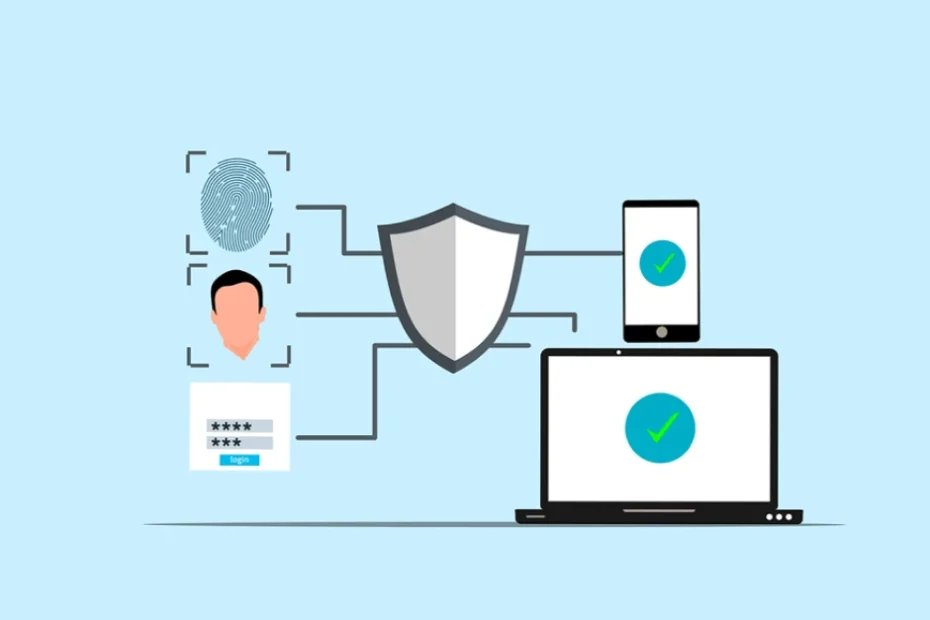
Here are some ways to improve your file storage security: Use Strong Passwords Enable Two-Factor Authentication Encrypt Your Files Keep Software Updated Regularly Strong passwords are difficult to guess, two-factor authentication adds an extra layer of security, encryption protects your data, and updates fix vulnerabilities.

Best Practices for Passwords

Here are tips for creating strong passwords: 1. Use **long** passwords. 2. Mix **letters, numbers, and symbols**. 3. Avoid using **personal information**. 4. Use **different passwords** for each account. These strategies help keep your files more secure.

What is Secure File Transfer?

Secure file transfer ensures that files are sent safely between individuals or devices. It protects your data from unauthorized access or modification during transit, often using encryption.

Common Secure Transfer Methods

Secure file transfers can be made through: 1. **Secure FTP (SFTP)** 2. **Virtual Private Networks (VPNs)** 3. **Encrypted Email Attachments** 4. **Secure File-Sharing Services** These methods help ensure that your data stays secure as it travels from one place to another.

How to Transfer Files Safely?

Follow these steps to ensure safe file transfers: Choose a secure method of transfer. Encrypt your files before sending them. Use strong passwords for access. Authenticate the recipient. Send access details separately from the files. These steps keep your files protected during the transfer process, ensuring only the intended recipient has access.

How to Email Attachments Safely

Email attachments can be risky. Here’s how to send them securely: 1. **Encrypt** sensitive attachments. 2. Use a **secure email service**. 3. Don’t include sensitive information in the body of the email. 4. Double-check the **recipient’s email address**. By following these practices, you protect your email attachments from prying eyes.

Common File Storage and Transfer Mistakes

People often make these mistakes when it comes to file safety: 1. **Weak password creation** 2. Forgetting to **encrypt** files 3. Sending files over **public Wi-Fi** 4. Not keeping **security software updated** 5. Giving access details along with the files These mistakes expose your files to unnecessary risks. Avoiding them is key to securing your data.

How to Avoid These Mistakes

You can prevent these errors by: 1. Setting up a **password manager**. 2. Using **automatic encryption**. 3. Always using a **VPN** on public Wi-Fi. 4. Enabling **auto-updates** for software. 5. Sending access details **separately** from the files. These actions will help you steer clear of common security mistakes and make your file storage and transfer safer.

Ready to Secure Your Files?

Securing your files ensures that your data remains protected from thieves and hackers. Use strong passwords, encryption, and secure transfer methods. Need help with secure file storage? Contact Lightwire Solutions today, and we’ll guide you through setting up safe systems to protect your critical data. Don’t wait until it’s too late—take the next step in safeguarding your digital world!

Article used with permission from The Technology Press.

"How to Spot Hidden Malware on Your Devices" blog banner - Bright red screen with a pirate flag icon, representing malware.

How to Spot Hidden Malware on Your Devices

Malware is bad software that can harm your computer or phone. It can slow down your device, steal your data, or even lock your files. At Lightwire Solutions, we help businesses stay protected from these cyber threats. Here’s how you can identify and prevent malware before it causes trouble.

What is Malware?

The word “malware” is short for “malicious software.” It’s any program designed to harm your device or data. Hackers create malware to steal information, damage systems, or demand money. There are several types of malware to watch out for:

Viruses

Viruses spread from device to device, damaging files and making your computer run painfully slow.

Trojans

Trojans disguise themselves as safe programs but secretly steal your information.

Ransomware

Ransomware locks your files and demands a payment to unlock them. Lightwire Solutions helps businesses defend against these attacks with advanced security solutions.

How Does Malware Get on Your Device?

Malware can sneak onto your device in different ways:

Downloading Bad Files

Malware often hides in unsafe downloads. Always verify the source before clicking.

Visiting Dangerous Websites

Some websites install malware when you visit them. A strong web filter can help block these threats.

Opening Suspicious Emails

Hackers send emails with infected attachments or links. If you don’t recognize the sender, don’t open it! Lightwire Solutions provides advanced email security to keep phishing attempts out of your inbox.

What Are Signs of Hidden Malware?

Malware is sneaky, but here are some red flags:

Sluggish Device

If your device suddenly slows down, malware could be the cause.

Suspicious Pop-ups

Unexpected ads or pop-ups may indicate malware infection.

High Data Usage

If your internet usage spikes without reason, malware might be running in the background.

How Can You Check for Malware?

Here’s how to check your device for malware:

Use Antivirus Software

Run a scan with reliable antivirus software. Lightwire Solutions offers managed security solutions to protect your systems.

Review Installed Apps

Go through your apps. Delete any you don’t recognize.

Check Task Manager

On a computer, open Task Manager and look for strange programs using too many resources.

Inspect Browser Extensions

Remove browser extensions you don’t remember installing.

What to Do If You Discover Malware?

If you suspect malware, don’t panic! Follow these steps:

Run a Full Scan

Use antivirus software to remove threats.

Update Your Software

Make sure your operating system and programs are up to date. Lightwire Solutions can manage these updates for you.

Change Your Passwords

Update passwords for important accounts, just in case.

Backup Your Data

Save important files to a secure location like the cloud. Our backup solutions keep your data protected.

How to Avoid Malware?

Prevention is the best strategy! Here’s how to stay safe:

Keep Everything Up-to-Date

Regular updates patch security flaws.

Be Careful What You Click

Think before clicking links or downloading files.

Use Strong Passwords

Create complex passwords and use a password manager.

Install Antivirus Software

Run frequent scans and keep protection software active. Lightwire Solutions can provide advanced threat detection.

Stay Safe Online with Lightwire Solutions!

Malware is a serious threat, but with the right precautions, you can keep your devices secure. If you need help protecting your business from malware, Lightwire Solutions is here for you. Contact us today to learn more about our cybersecurity solutions!

Article used with permission from The Technology Press.